
introduction
A PS5 controller is designed to give smooth, responsive, and comfortable gameplay. However, like any wireless device, it can sometimes stop working properly. You may notice connection problems, delayed responses, charging issues, button lag, or the controller not pairing with your PlayStation 5 console. In many cases, resetting the PS5 controller can fix these problems quickly.
If your DualSense controller is not responding the way it should, this guide will explain how to reset a PS5 controller safely and reconnect it to your console.
Why You May Need to Reset Your PS5 Controller
There are several reasons why your PS5 controller may need a reset. The most common reason is a connection issue between the controller and the console. Sometimes the controller may disconnect randomly, fail to pair, or keep flashing without connecting.
You may also need to reset your PS5 controller if the buttons are not responding properly, the analog sticks feel delayed, or the controller is acting strangely during gameplay. A reset can also help after a system update, a Bluetooth issue, or when switching the controller between different devices.
Resetting does not damage your controller. It simply clears temporary connection problems and allows the controller to pair again with your PS5.
Types of PS5 Controller Reset
There are two main ways to reset a PS5 controller:
- Soft reset
- Hard reset
A soft reset is useful when the controller is still working but has minor issues. A hard reset is better when the controller is not connecting, not responding, or behaving incorrectly.
How to Soft Reset a PS5 Controller
A soft reset is the easiest method and should be tried first. It refreshes the connection between your controller and console.
Step 1: Turn Off the PS5 Controller
Press and hold the PS button on your controller. Open the Control Center on your PS5, go to Accessories, select the controller, and choose Turn Off.
You can also turn off the console completely if the controller is not responding properly.
Step 2: Restart Your PS5 Console
Turn off your PS5 console and wait for a few seconds. After that, turn it back on.
Step 3: Reconnect the Controller
Connect your PS5 controller to the console using a USB-C cable. Press the PS button on the controller. If the controller connects successfully, the soft reset has worked.
This method is best for small issues such as temporary lag, random disconnection, or minor pairing problems.
How to Hard Reset a PS5 Controller
If the soft reset does not fix the issue, you can perform a hard reset. This resets the controller hardware and clears its saved wireless connection.
Step 1: Turn Off Your PS5 Console
Before resetting the controller, turn off your PS5 completely. Do not leave it in Rest Mode. Make sure the console is fully powered off.
Step 2: Find the Reset Button
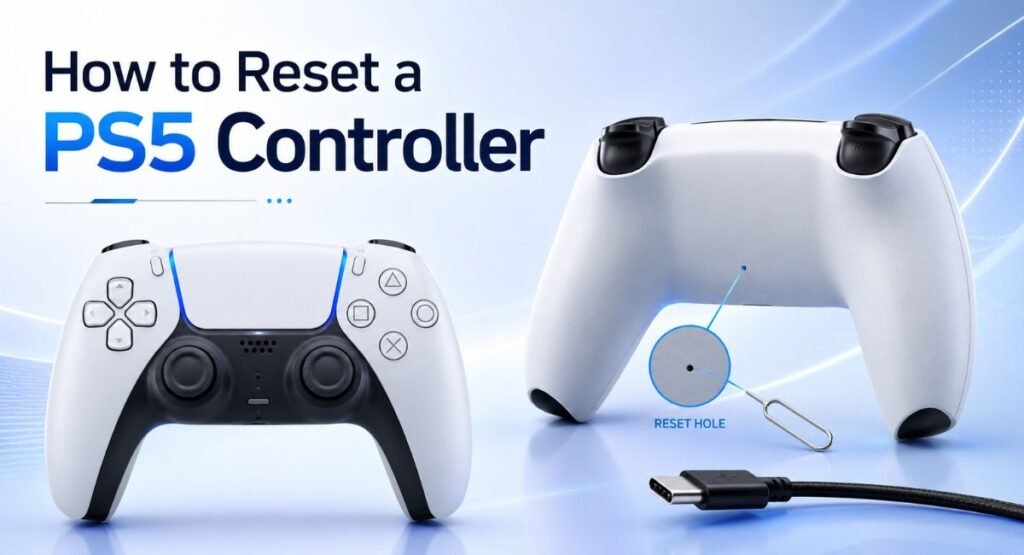
Turn your DualSense controller over. On the back of the controller, you will see a small hole. This is the reset button.
You will need a small tool such as a paperclip, SIM ejector tool, or toothpick to press it.
Step 3: Press and Hold the Reset Button
Insert the paperclip or small tool into the reset hole. Press and hold the button for around 5 seconds.
After holding it for a few seconds, release the button. Your controller has now been reset.
Step 4: Connect the Controller with a USB-C Cable
Use a USB-C cable to connect the controller directly to your PS5 console. For best results, use the original cable or a high-quality data cable.
Some charging-only cables may not work for pairing, so make sure the cable supports data transfer.
Step 5: Press the PS Button
After connecting the controller, press the PS button. The controller should pair with the console again.
If it connects successfully, you can remove the cable and use the controller wirelessly.
What to Do If the PS5 Controller Still Will Not Connect
If your controller still does not connect after resetting, there may be another issue. Try these fixes:
Check the USB-C cable.
A damaged or charging-only cable can stop the controller from pairing. Try a different USB-C cable that supports data transfer.
Charge the Controller
If the battery is very low, the controller may not connect properly. Charge it for at least 20 to 30 minutes before trying again.
Restart the PS5 console.
Turn off the PS5 completely, unplug it from the power outlet for one minute, then plug it back in and turn it on.
Remove Other Bluetooth Devices
Too many connected Bluetooth devices can sometimes cause pairing issues. Disconnect unnecessary devices and try again.
How to Reset PS5 Controller Without a Console
You can reset the controller without turning on the PS5 by using the reset button on the back. Press and hold the small reset button for about 5 seconds. After that, you will still need to connect the controller to a PS5 or another supported device using a USB-C cable to pair it again.
This is useful if your controller was previously connected to a PC, phone, tablet, or another console.
When Should You Reset Your PS5 Controller?
You should reset your PS5 controller when:
The controller will not pair with the PS5
The controller keeps disconnecting
The buttons are not responding properly
The controller light keeps flashing
The controller has input delay
The analog sticks feel unresponsive
The controller was connected to another device
The PS5 does not recognize the controller
A reset is one of the simplest troubleshooting steps and often solves these problems without needing repairs.
Does Resetting a PS5 Controller Delete Anything?
No, resetting your PS5 controller does not delete your games, console data, saved files, account, or settings on the PS5. It only resets the controller connection. You may need to pair the controller again after the reset, but your console data remains safe.
Final Thoughts
Resetting a PS5 controller is a quick and easy way to fix connection, pairing, lag, and response problems. Start with a soft reset if the issue is minor. If that does not work, use the hard reset button on the back of the controller.
After resetting, always reconnect the controller to the PS5 using a USB-C data cable and press the PS button to pair it again. In most cases, this simple process will get your DualSense controller working normally again.
FAQs
How long should I hold the PS5 controller reset button?
You should hold the reset button for around 5 seconds using a small tool such as a paperclip.
Where is the reset button on a PS5 controller?
The reset button is inside a small hole on the back of the DualSense controller.
Why is my PS5 controller flashing but not connecting?
This usually means the controller is trying to pair but cannot connect. Reset the controller, connect it with a USB-C data cable, and press the PS button.
Can I reset a PS5 controller without a USB cable?
You can press the reset button without a cable, but you usually need a USB-C cable to pair the controller with the PS5 again.
Will resetting my PS5 controller fix stick drift?
Resetting may help if the issue is software related, but it usually does not fix physical stick drift caused by dust, wear, or hardware damage.